
Support
Need help? We're here for you
Want to contact the RapideSIM team?
A problem after your purchase?
Before you write to us, these answers solve most eSIM issues in a few minutes.
"Unable to Activate eSIM"
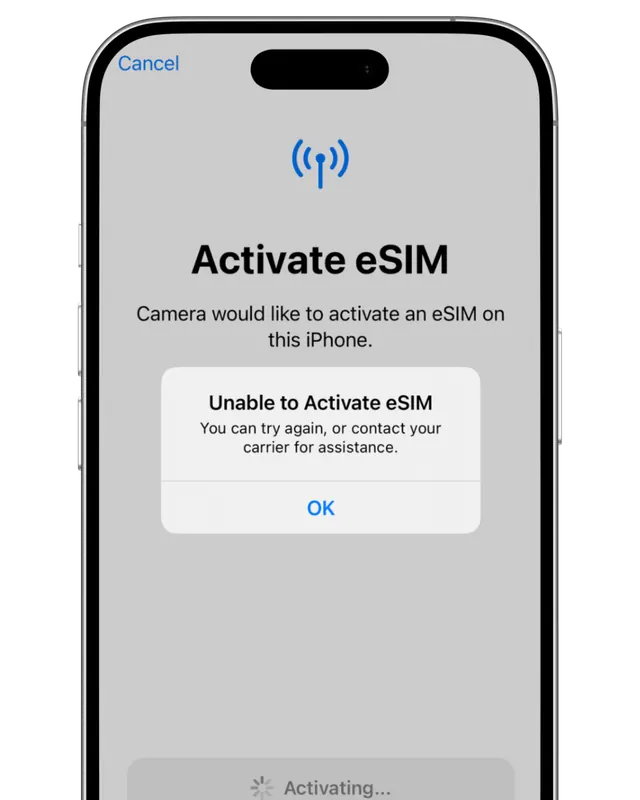
Don't panic, this is normal. The message shows when the eSIM is not yet connected to a compatible network: at home, before you leave, there is none.
Still nothing at your destination?
- Restart your phone and wait a few minutes.
- Turn Airplane Mode on for 30 seconds, then off.
- Settings → Cellular → your eSIM: turn "Turn On This Line" off, then on again.
On Android, the same settings live under Settings → Connections → SIM manager and Mobile networks.
Check whether the eSIM is installed and how much data is left
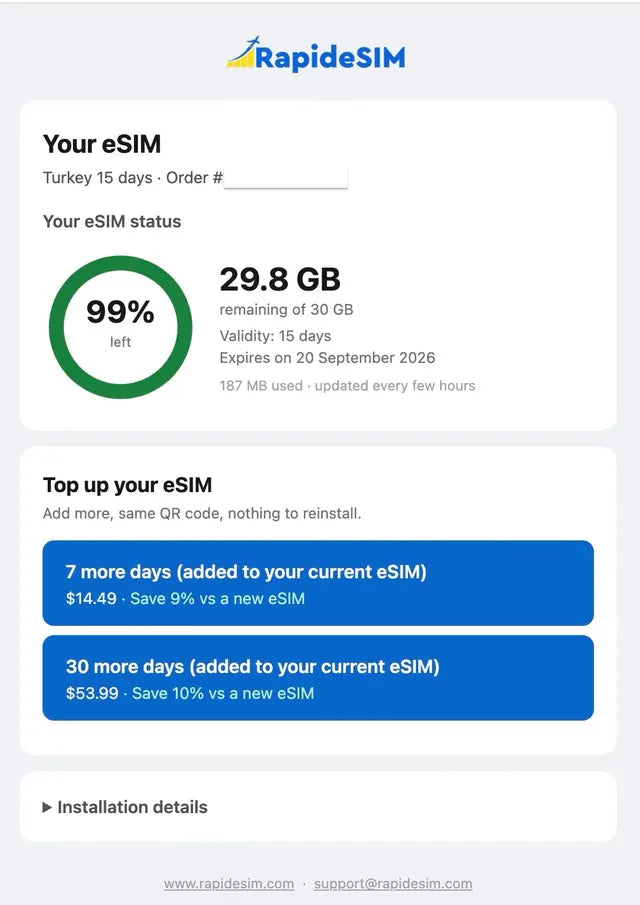
RapideSIM has no app to install: everything is on the top-up page. Enter your order number or the ICCID of the eSIM to see its status (installed or not), remaining data, validity and expiry date, updated every few hours.
The same page lets you add days or data to the eSIM you already installed: same QR code, nothing to reinstall.
Find the right eSIM on your phone
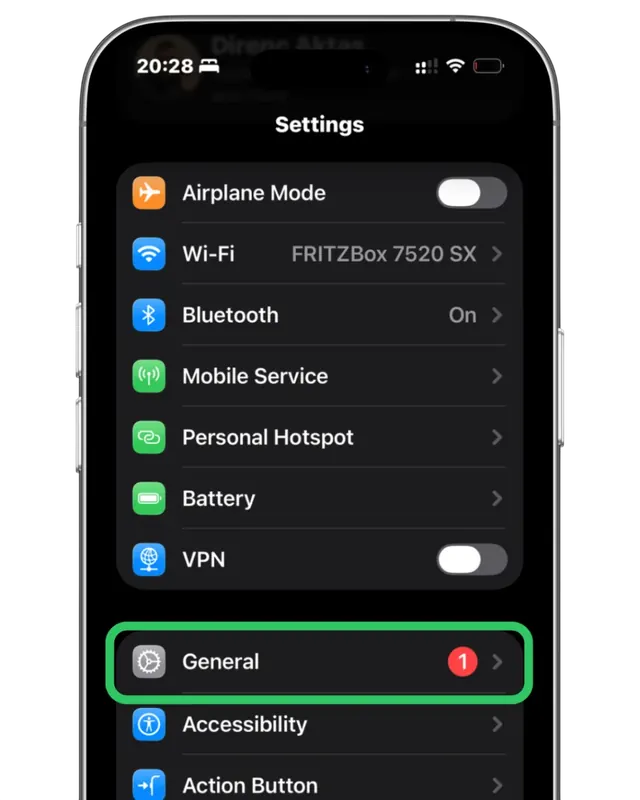
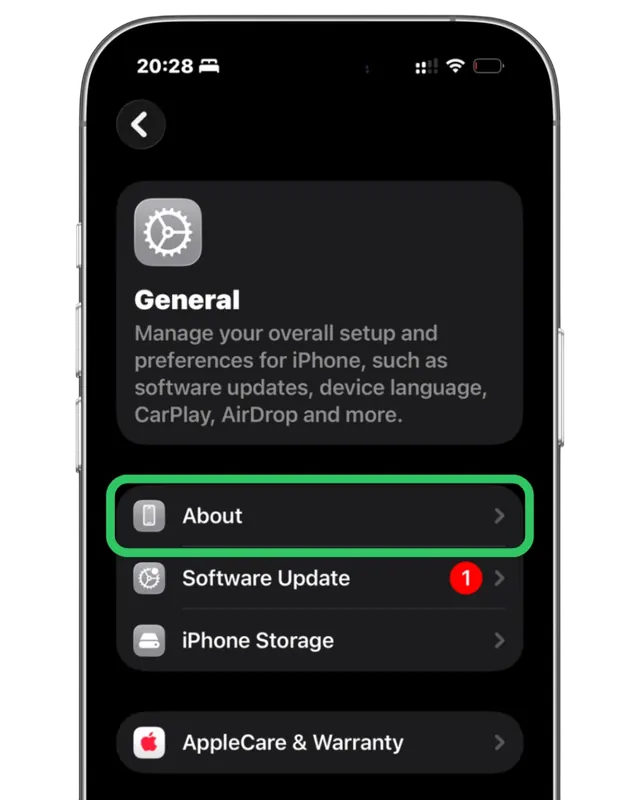
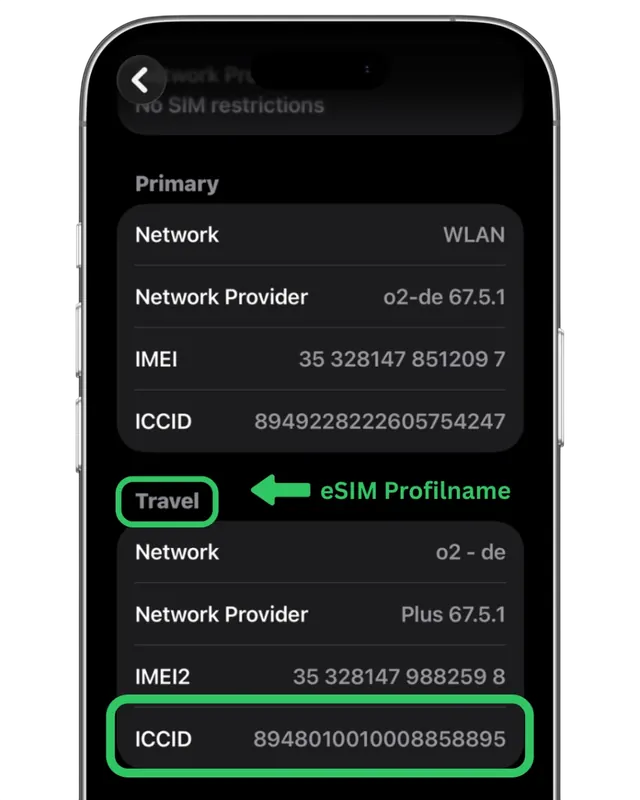
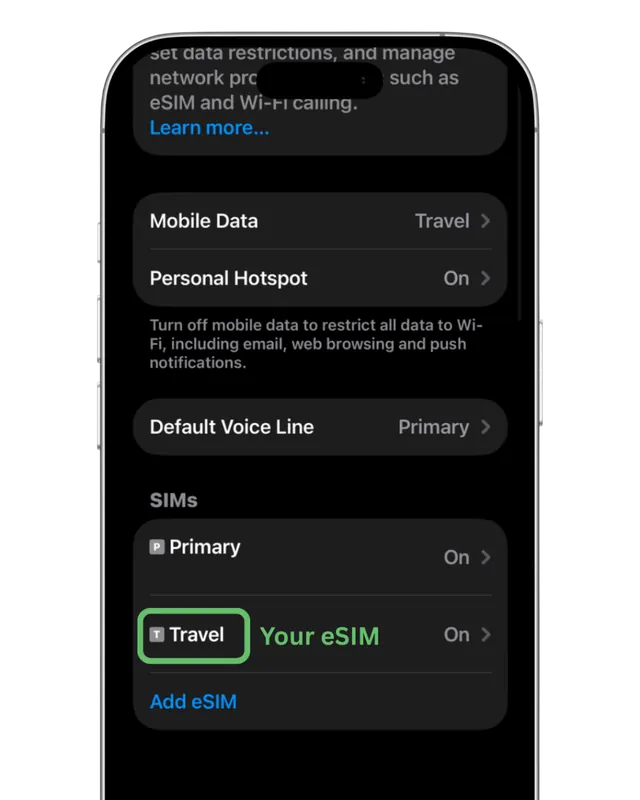
If several eSIMs are installed, you need to find the RapideSIM one. Its ICCID is in your confirmation email and on the top-up page.
Then go to Settings → General → About and scroll to the SIM blocks: the one whose ICCID matches is your RapideSIM eSIM. Its label ("Travel", or the name you chose) is what shows under Settings → Cellular.
On Android, the same settings live under Settings → Connections → SIM manager and Mobile networks.
No internet connection
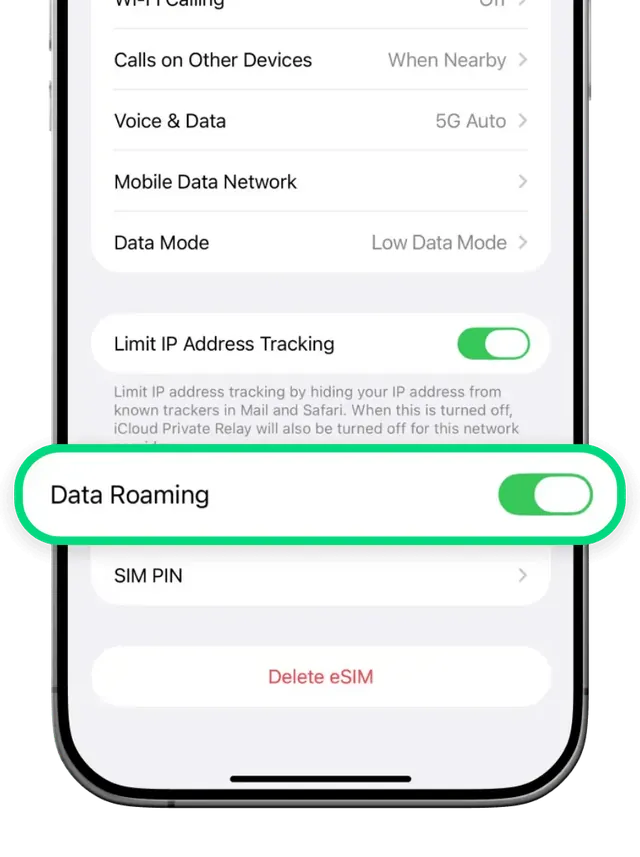
Your eSIM only works and activates in the destination country. If you are there and still have no internet, check:
- Is Data Roaming on? Settings → Cellular → your eSIM → Data Roaming must be ON.
- Is the right SIM selected for data? Settings → Cellular → Cellular Data → select your RapideSIM eSIM.
- Is "Turn On This Line" enabled? Settings → Cellular → your eSIM → must be ON.
- Is "Allow Cellular Data Switching" off? Settings → Cellular → turn it off so you don't fall back on your main SIM's data.
On Android, the same settings live under Settings → Connections → SIM manager and Mobile networks.
The QR code says "invalid"
Each eSIM QR code installs only once. "This code is no longer valid" or "already used" almost always means the eSIM is already on your phone: no need to scan it again.
Check under Settings → Cellular whether an eSIM line already exists, or look up its status on the top-up page with your order number.
Wrong network near a border
Near a border, your phone may latch onto the neighbouring country's network, where your plan is not valid: you see signal bars, but no data.
Pick the network manually: Settings → Cellular → your RapideSIM eSIM → Network Selection → turn off "Automatic" → choose a network of the country you are in.
No internet in Japan: set the APN
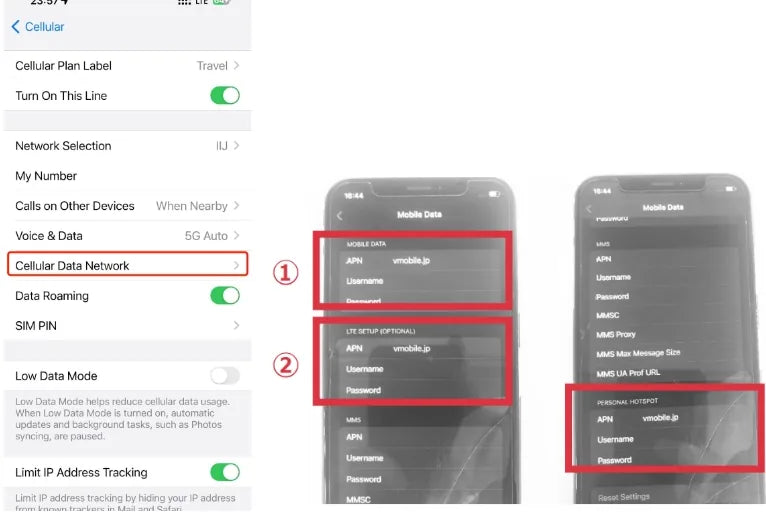
The APN (the operator's access point) sets itself in all our destinations, and hotspot sharing works by default. The one exception is Japan, where the APN must be "vmobile.jp". Without it you have signal but no data.
iPhone: Settings → Cellular → your eSIM → Cellular Data Network. Enter vmobile.jp in the APN field under "Cellular Data" (and under "Personal Hotspot" if you share your connection), then make sure Data Roaming is on.
Android: Settings → Connections → Mobile networks → Access Point Names → Add. Name and APN: vmobile.jp. Save, then select it.
Why can't I install my eSIM?
If the QR code or the manual installation fails, check these five points:
- Your phone is unlocked. An eSIM cannot be installed on a carrier-locked or contract phone: ask your carrier to unlock it.
- Your phone supports eSIM.
- You have a good internet connection (Wi-Fi or data): the eSIM profile is downloaded during installation.
- You are not behind a firewall: some corporate or public networks block the download.
- The QR code has not already been scanned on another device: each eSIM can be installed once only.
Install on iPhone · Install on Samsung · Check compatibility
Can I transfer my eSIM to a new phone?
Not once it has been activated: an activated eSIM is tied to the phone it was installed on and cannot be moved. If you had not activated it before changing device, you can still use it on the new one.
What should I send support to get help faster?
Via WhatsApp, chat or email, send us:
- your order number;
- the ICCID of the eSIM (in the confirmation email, and on the phone under Settings → Cellular → your eSIM);
- your phone model;
- a screenshot of the error or of the cellular settings.
With these details, the problem is usually fixed in the first reply.